
Georgia's Guide To Bambu Studio
Useful Things To Know And Strategies

Welcome to Bambu Studio! Starting with total transparency this software is great, everything is straight forward and easy to find and if you hover your mouse over something in program it actually explains what it is in a little text blurb that pops up. For an ultra basic summary of information please feel free to visit the wiki below, I have already set it up to take you to the Bambu Studio section.
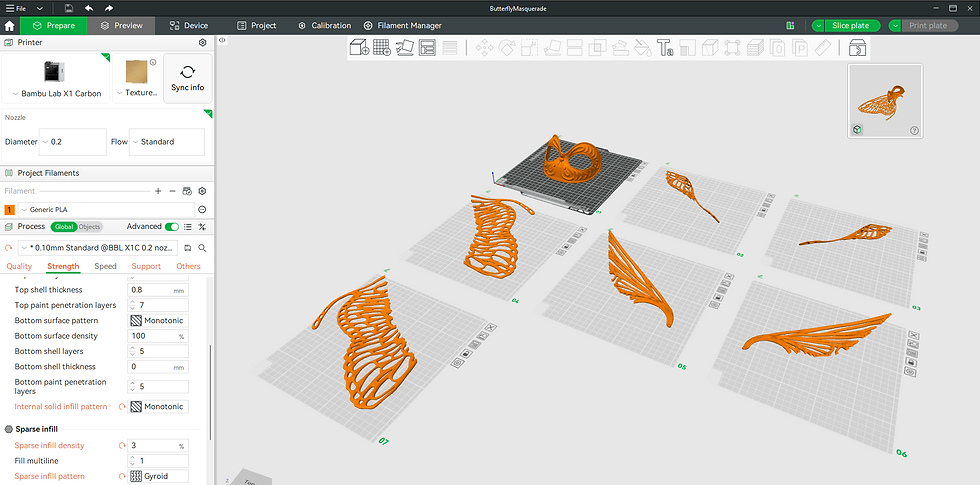
If you think about little stair-stepped edges when you think about 3D printing, you've probably seen an object or two online made by someone who isn't familiar with the practices that lend themselves to a higher quality 3D print.
The first and most important thing to keep in mind is high detail and fidelity are dictated by two primary things: The nozzle size of your printer, and object orientation.
Nozzle Size:
Visualize you are driving a limo around a series of tight turns, and then visualize driving that same course in a golfcart- the smaller vehicle has an easier time maneuvering around the tight turns in the same way a smaller nozzle can account for finer deviations in its path than a larger nozzle could. Each 3D printed layer is essentially a little racetrack your nozzle must run in order to build your object. Because a .2mm nozzle is half the size of a .4mm nozzle, not only does it corner tighter but the thickness of the layers can also be reduced, giving your object's surface a smoother appearance. Something to note is 2mm nozzles are best suited to plain filaments because a large piece of glitter could literally clog the head. In regards to printing speed a .2mm nozzle takes a significantly longer time to print than a .4mm nozzle and you will have to remember this especially when it comes to object infills (the interior lattice-works that give 3d prints their structural integrity), they are significantly smaller and denser and a sparse infill of 3% is more than enough internal support.
Object Orientation:
Depending on how much of an object's surface faces the top or bottom of the machine, you will notice a huge difference in how stair-stepped your object ends up printing.
DOING IT WRONG:
Printing with your object completely facing up at the nozzle like what's pictured below is a terrible idea because you will have the lowest fidelity on your areas of highest interest and experience layer plateaus because your object's surface changes are too high of a resolution for the printer to follow.

Your layers will look like this, and this looks like doodoo- no amount of sanding will make this less bad than it is.

Below is the worst thing you could do because supports attach from the plate direction and not only will your surface look like what's pictured above, but it will be so mangled by the supports you might as well quit before you even begin.

DOING IT RIGHT:
Have the areas of your object with the highest detail face the front of the machine. Facing the front is important because you have greater control of seam placement (when/where a layer of filament terminates) and can specify having them on the back side of the object if you go to the bottom left portion of the screen to process>global>quality>seam>seam position.


Look at how much closer I am able to zoom in on an object with the correct print orientation before we are able to perceive layers.

ADAPTIVE LAYERING:
The last, and arguably most important thing to know about high quality prints is Bambu Lab's Adaptive layering. It is incredibly useful for getting layer smoothness when it comes to the planes of the object that face the nozzle and the bed, and also forces the printer to take higher risk areas with more caution at a slower speed. Upping the radius and lowering the speed can make all the difference in the world. You can find this menu at the top center bar by clicking the symbol below if you have your object selected.

Supports are CRITICAL for most 3d prints and have an entire section dedicated to them in the lower left process>global portion of the screen.
There are four primary kinds of support in Bambu Studio, normal(auto), tree(auto), normal(manual), tree(manual). The autos are automatically generated by the program once you click slice with no effort from you other than toggling support on at the check box. The manuals you would go in and paint by hand using the symbol depicted below on the main bar of the studio screen. Manual is best suited for times when you know the computer is doing lazy math and underestimating the support needed in a specific area regardless of if its a tree or a normal. The computer will prioritize using the least amount of filament when it comes to supports which sometimes produces utterly shrimpy little towers that are more prone to collapsing and ruining your print than they are to actually offering any support.

If you do find you need to paint supports, you will select your target object, click this symbol and a rudimentary paint menu with pop up with various fills and an adjustable brush size, heavy handed is best in this scenario, and if you need to erase, holding shift and alt down together will turn your brush into an eraser as long as you hold the keys down.
'Okay, but which support is THE BEST?'
I personally prefer normal supports, yes I can feel some 3D printer users gagging somewhere out in the universe, but let me list off my reasons.
1.) They are less likely to damage fine detail: because they're thin portions of matrix they appear dense looking, but are actually extremely easy to strip away from areas that are thin and or frail without damaging them.
2.) Because of their even distribution they lack the weak points trees are prone to: normal supports are an evenly distributed matrix while trees taper and stretch away from their initial trunk support meaning they span outwards into areas of being off balance and weak. They do not have the natural pressure distribution normals have.
3.) Normal supports are less prone to lifting off of the bed: Because of the amount of contact they have with the surface of the heatbed, normal supports are less likely to be pried off by the nozzle in the event of a snag. Trees are also more susceptible to being torn away because their interiors are completely hollow which means they have significantly less grip on the heatbed regardless of skirt loops.
'Are trees good for anything?'
Yes, trees have their moments. They cost less filament, make a print take significantly less time, and are overall fine to use most of the time if the object you're printing doesn't demand a finer touch.
Zbrush flat is not mathematically flat:
Is this silly? Yes, yes it is. No matter HOW FLAT the base of your object looks in zbrush the program is lying to you and the 3D printer will print your object in a very silly way unless you take the extra step of using bambu studio's cut tool to take off a paper thin slice and delete it. While this is tedious it just goes to show how detail oriented these machines really are.
A hair thin bit is a dangerous bit:
It is important that you make sure no parts of your 3d models are too thin and or accidentally not water tight. Best case scenario the program will give you an error message telling you about the print not being feasible, worst case scenario it doesn't let you know that there's something wrong with your object until it gets to the point it makes a big spaghetti mess. This is the same problem that can happen with floating vertices or mesh that you do not notice in program unless you're really looking for them.
Don't be afraid to cut your objects into pieces:
Sometimes cutting your objects down is the best thing you can do for them. For instance the closer something is to the heatbed, the less supports it'll need height-wise and it also makes it sturdier overall because of physics, the fact that its more consolidated and only a little ways above where its anchored means it'll sway less which reduces your margin for error.
Every filament is different:
The best thing you can do besides making sure you have entered the filament's information correctly into the machine, is go into the online models of bambu labs, find a print profile for the specific filament you're using, and go about preparing your object in this file. That way you can be sure the filament and the machine will behave predictably.
Welcome to Bambu Studio! Starting with total transparency this software is great, everything is straight forward and easy to find and if you hover your mouse over something in program it actually explains what it is in a little text blurb that pops up. For an ultra basic summary of information please feel free to visit the wiki below, I have already set it up to take you to the Bambu Studio section.
If you think about little stair-stepped edges when you think about 3D printing, you've probably seen an object or two online made by someone who isn't familiar with the practices that lend themselves to a higher quality 3D print.
The first and most important thing to keep in mind is high detail and fidelity are dictated by two primary things: The nozzle size of your printer, and object orientation.
Nozzle Size:
Visualize you are driving a limo around a series of tight turns, and then visualize driving that same course in a golfcart- the smaller vehicle has an easier time maneuvering around the tight turns in the same way a smaller nozzle can account for finer deviations in its path than a larger nozzle could. Each 3D printed layer is essentially a little racetrack your nozzle must run in order to build your object. Because a .2mm nozzle is half the size of a .4mm nozzle, not only does it corner tighter but the thickness of the layers can also be reduced, giving your object's surface a smoother appearance. Something to note is 2mm nozzles are best suited to plain filaments because a large piece of glitter could literally clog the head. In regards to printing speed a .2mm nozzle takes a significantly longer time to print than a .4mm nozzle and you will have to remember this especially when it comes to object infills (the interior lattice-works that give 3d prints their structural integrity), they are significantly smaller and denser and a sparse infill of 3% is more than enough internal support.
Object Orientation:
Depending on how much of an object's surface faces the top or bottom of the machine, you will notice a huge difference in how stair-stepped your object ends up printing.
DOING IT WRONG:
Printing with your object completely facing up at the nozzle like what's pictured below is a terrible idea because you will have the lowest fidelity on your areas of highest interest and experience layer plateaus because your object's surface changes are too high of a resolution for the printer to follow.
Your layers will look like this, and this looks like doodoo- no amount of sanding will make this less bad than it is.
Below is the worst thing you could do because supports attach from the plate direction and not only will your surface look like what's pictured above, but it will be so mangled by the supports you might as well quit before you even begin.
DOING IT RIGHT:
Have the areas of your object with the highest detail face the front of the machine. Facing the front is important because you have greater control of seam placement (when/where a layer of filament terminates) and can specify having them on the back side of the object if you go to the bottom left portion of the screen to process>global>quality>seam>seam position.
Look at how much closer I am able to zoom in on an object with the correct print orientation before we are able to perceive layers.
ADAPTIVE LAYERING:
The last, and arguably most important thing to know about high quality prints is Bambu Lab's Adaptive layering. It is incredibly useful for getting layer smoothness when it comes to the planes of the object that face the nozzle and the bed, and also forces the printer to take higher risk areas with more caution at a slower speed. Upping the radius and lowering the speed can make all the difference in the world. You can find this menu at the top center bar by clicking the symbol below if you have your object selected.
Supports are CRITICAL for most 3d prints and have an entire section dedicated to them in the lower left process>global portion of the screen.
There are four primary kinds of support in Bambu Studio, normal(auto), tree(auto), normal(manual), tree(manual). The autos are automatically generated by the program once you click slice with no effort from you other than toggling support on at the check box. The manuals you would go in and paint by hand using the symbol depicted below on the main bar of the studio screen. Manual is best suited for times when you know the computer is doing lazy math and underestimating the support needed in a specific area regardless of if its a tree or a normal. The computer will prioritize using the least amount of filament when it comes to supports which sometimes produces utterly shrimpy little towers that are more prone to collapsing and ruining your print than they are to actually offering any support.
If you do find you need to paint supports, you will select your target object, click this symbol and a rudimentary paint menu with pop up with various fills and an adjustable brush size, heavy handed is best in this scenario, and if you need to erase, holding shift and alt down together will turn your brush into an eraser as long as you hold the keys down.
'Okay, but which support is THE BEST?'
I personally prefer normal supports, yes I can feel some 3D printer users gagging somewhere out in the universe, but let me list off my reasons.
1.) They are less likely to damage fine detail: because they're thin portions of matrix they appear dense looking, but are actually extremely easy to strip away from areas that are thin and or frail without damaging them.
2.) Because of their even distribution they lack the weak points trees are prone to: normal supports are an evenly distributed matrix while trees taper and stretch away from their initial trunk support meaning they span outwards into areas of being off balance and weak. They do not have the natural pressure distribution normals have.
3.) Normal supports are less prone to lifting off of the bed: Because of the amount of contact they have with the surface of the heatbed, normal supports are less likely to be pried off by the nozzle in the event of a snag. Trees are also more susceptible to being torn away because their interiors are completely hollow which means they have significantly less grip on the heatbed regardless of skirt loops.
'Are trees good for anything?'
Yes, trees have their moments. They cost less filament, make a print take significantly less time, and are overall fine to use most of the time if the object you're printing doesn't demand a finer touch.
Zbrush flat is not mathematically flat:
Is this silly? Yes, yes it is. No matter HOW FLAT the base of your object looks in zbrush the program is lying to you and the 3D printer will print your object in a very silly way unless you take the extra step of using bambu studio's cut tool to take off a paper thin slice and delete it. While this is tedious it just goes to show how detail oriented these machines really are.
A hair thin bit is a dangerous bit:
It is important that you make sure no parts of your 3d models are too thin and or accidentally not water tight. Best case scenario the program will give you an error message telling you about the print not being feasible, worst case scenario it doesn't let you know that there's something wrong with your object until it gets to the point it makes a big spaghetti mess. This is the same problem that can happen with floating vertices or mesh that you do not notice in program unless you're really looking for them.
Don't be afraid to cut your objects into pieces:
Sometimes cutting your objects down is the best thing you can do for them. For instance the closer something is to the heatbed, the less supports it'll need height-wise and it also makes it sturdier overall because of physics, the fact that its more consolidated and only a little ways above where its anchored means it'll sway less which reduces your margin for error.
Every filament is different:
The best thing you can do besides making sure you have entered the filament's information correctly into the machine, is go into the online models of bambu labs, find a print profile for the specific filament you're using, and go about preparing your object in this file. That way you can be sure the filament and the machine will behave predictably.